
sparq.tools
Cut one test square on your real material, measure it with calipers, and get your laser's exact kerf in seconds. Save it once and every sparq.tools generator uses it automatically so your joints fit on the first try. Runs entirely in your browser. Nothing is uploaded.
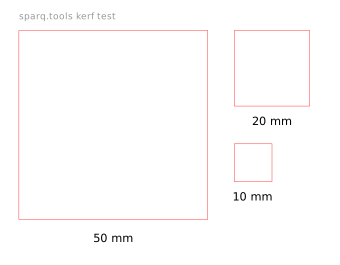
Download the test square, cut it on your actual material. Measure the cut piece with calipers. The difference between designed and measured size is your kerf.
Laser kerf is the width of material your laser beam removes as it cuts. The focused beam has a real, measurable width, so every cut takes away a sliver of material. The result is that a part always comes out slightly smaller than the size you drew, and a slot always ends up slightly wider than you intended.
For most jobs that difference is invisible. But for finger joints, box tabs, inlays, and press-fit parts, a few hundredths of a millimeter decide whether pieces fall apart or never go together. Measuring your kerf once turns guesswork into a number you can offset against.
The square method is the simplest reliable way to find your kerf:
Generate a 50 mm test square above (or grab the free test card) and cut it on the exact material and thickness you plan to use. Bigger squares give more accurate readings.
Measure the square across the middle with calipers. Measure twice, on two sides, and average if they differ.
Enter the designed and measured sizes and the calculator returns your kerf using kerf = (designed − measured) ÷ 2. Save it to your material profile so every generator on sparq.tools reuses it automatically.
Yes. It is completely free and runs entirely in your browser. No signup is required and your files never leave your computer.
Yes. Kerf varies with material, thickness, and laser settings like power and speed. Measure it separately for each material and thickness you cut regularly, and save each value to its own profile.
For a CO2 laser on 3 mm plywood or acrylic, kerf is commonly around 0.10 to 0.20 mm, but yours depends on your machine and settings. Always measure rather than assume.
Apply it as an offset so parts come out the right size and slots fit snugly. The sparq.tools generators do this for you once your kerf is saved, and FitFix can apply it to an existing SVG.